EMPLOYEE SELF SERVICE · TIME OFF
Comp Off Request
Apply to consume a previously-earned compensatory off — a day away from work on your chosen date.
Request
👥 WHO USES THIS
▸ Any employee with a positive, non-expired comp-off balance.
▸ Employees planning to consume earned comp-off against a specific date.
▸ Managers consuming their own balance (raised like any other request).
▸ Not applicable to employees on probation per default policy.
⚙ Before You Begin
▸Confirm you have positive comp-off balance.
▸Note any expiry dates attached to your balance slots.
▸Check that your chosen date does not clash with critical projects.
✨ WHAT YOU'LL ACHIEVE<
▸Select one or more dates to consume.
▸Track approval and auto-deduction of balance.
▸Cancel the request before the date if plans change.
To apply for a comp off request, click the +Apply button on the right-hand side. A pop-up window will open, where employees must fill in all the mandatory fields and submit the request.
Select the Worked Date field when applying for a Comp Off.
Please note, you can submit a Comp Off request only if you have an available Comp Off balance. If there is no eligible balance, the system will display a validation message indicating that you are not eligible to apply.
After completing all required fields, click Submit to trigger the approval process, which will be sent to the designated approver based on the configured workflow.To view the approval workflow, click the three-dot menu in the Action column and select "Approval Workflow." A pop-up will display the current status of the request.
To view comp off data: Select the record, and a pop-up window will open displaying the applied leave request.
To edit a comp off request: Click the Three Dots in the Actions column and select Edit.
To cancel a comp off request: Click the Three Dots in the Actions column and select Cancel.
To download the comp off register report click the Three Dots in the right hand side above the Actions button and click the Export.
You can cancel only the approved comp off records only if the payslip has not been generated for that month.
If you cancel an approved comp off request, the status will change to "Cancel Applied", and an approval request will be sent to the approver. Once approved, the status will change to "Cancelled" and the deducted balance will get credited.
On this screen
This is the Add Comp Off Request form — used to consume comp-off from your available balance. Open it from Time Off → Comp Off → + New Request. You pick the date, set the duration (half-day or full-day), and the system shows which grant will be consumed (FIFO — oldest unexpired grant first). Requests need at least 48 hours' notice by default.
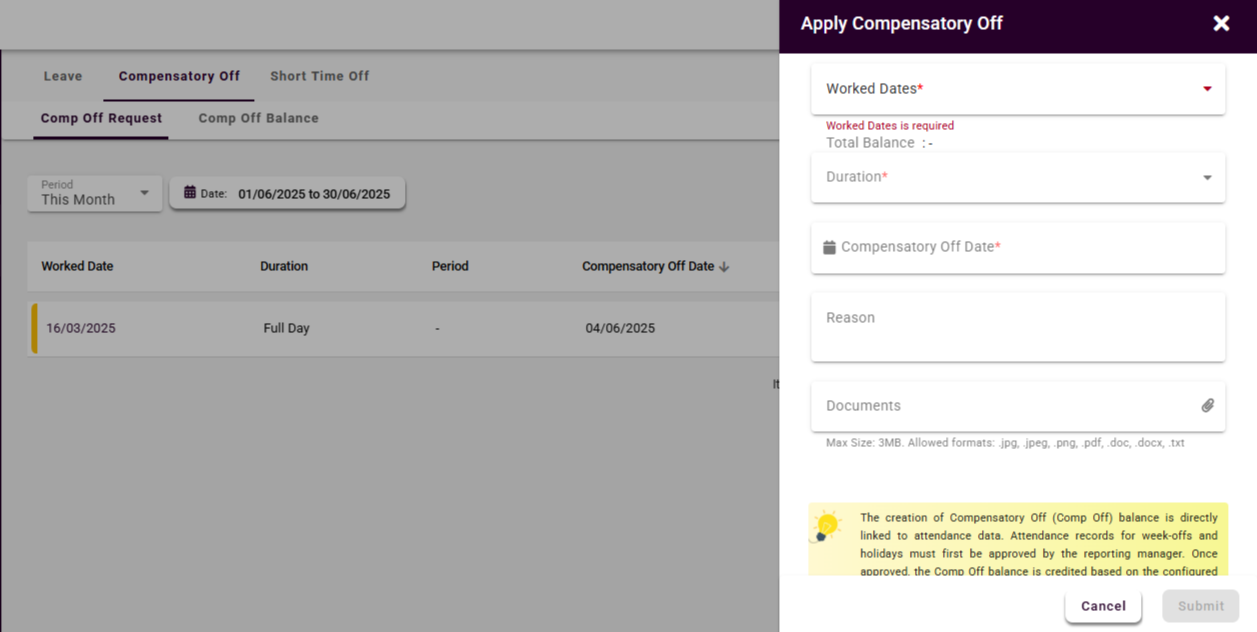
Fig: Add Comp off Request
On this screen
The View Comp Off Request screen shows the detail of a single consumption request — the source grant being consumed, the target date, duration, approver trail, and any comments. This is where you track a specific request through its approval lifecycle.
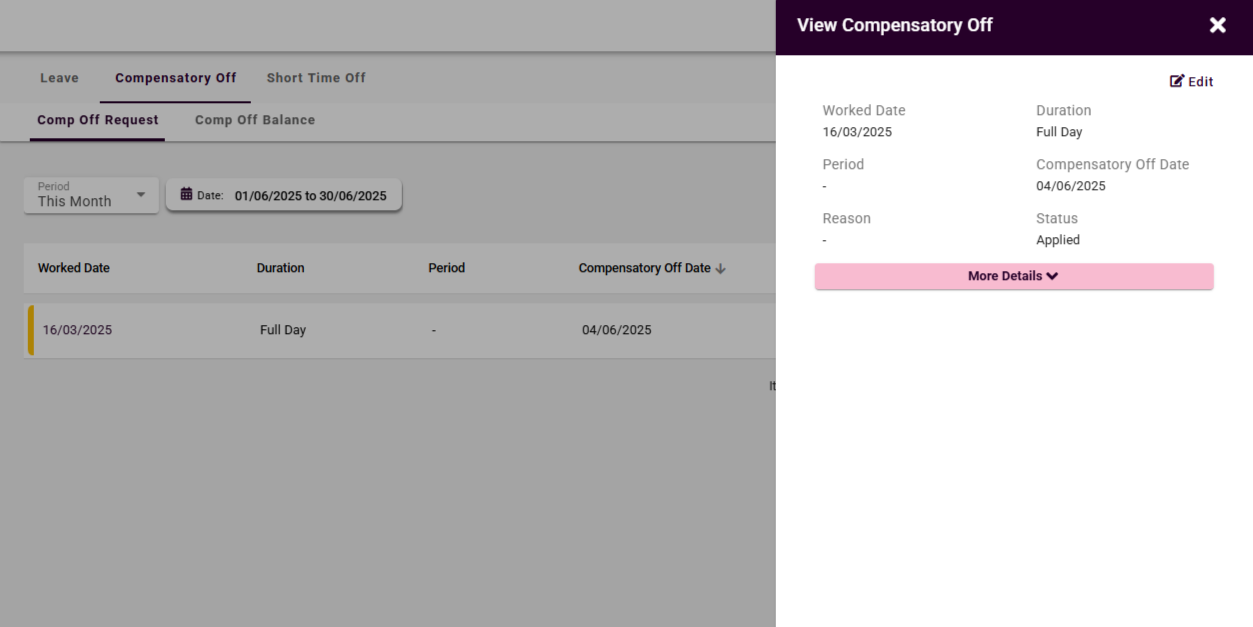
Field Reference — Comp Off Request Form
The fields you'll complete to consume comp-off from your available balance.
| Field | Description | Required | Validation |
|---|
| Source Grant | Which granted comp-off to consume — the form pre-selects the oldest unexpired grant (FIFO). | Auto | Manual override allowed; disabled grants (expired / zero balance) are hidden. |
| Request Date (Start) | Day you want to take the comp-off. | Yes | Must be ≥ 48 hours in the future per default policy; no past-dated requests. |
| Request Date (End) | Last day of consumption. Same as Start for single-day requests. | Yes | Must respect max consecutive cap (3 days default). |
| Duration (Days) | Auto-computed; 0.5 (half-day) or 1.0 (full-day) per day within the range. | Auto | Cannot exceed available balance. |
| Half-Day Indicator | First-half / Second-half toggle when Duration = 0.5. | Conditional | Only editable for half-day requests. |
| Reason | Optional note for your manager's context. | No | Free-text; max 500 characters. |
| Clubbing Info | Read-only list of adjacent weekends / holidays that will be auto-clubbed. | Auto | Derived from work calendar; informational only. |
| Approver | Auto-populated from reporting manager. | Auto | HR can override for edge cases. |
Frequently Asked Questions — Comp Off Request
Q. Can I request comp-off for a past date?
No — comp-off requests must be for a future date or same-day emergency use (subject to policy). Past-dated consumption is not supported to preserve balance integrity.
Q. What's the minimum comp-off I can request?
0.5 day (half-day) is the minimum unit. Hourly comp-off is not supported via this workflow — use Short Time Off for sub-day absences.
Q. How is comp-off debited when I have multiple grants?
FIFO — the oldest unexpired grant is debited first. This prevents you from losing newer balance to expiry while older balance remains unused.
Q. Can I combine comp-off with weekend / public holiday?
Yes, comp-off can be clubbed with non-working days. It cannot be clubbed with Sick or Casual leave in the same request — raise those separately.
Q. What if my comp-off request is rejected?
You'll be notified with the reason. Common rejection reasons are insufficient notice, team coverage concerns, or clashing critical deadlines. Discuss with your manager and resubmit for a different date if needed.
Related Articles