EMPLOYEE SELF SERVICE · TIME OFF
Comp Off Balance
Your current balance of compensatory off days — earned from weekend or holiday work, available to consume before expiry.
Balance
👥 WHO USES THIS
▸Employees who worked on a weekend or holiday.
▸Managers verifying team comp-off availability.
▸HR tracking comp-off earn and burn.
✨ WHAT YOU'LL ACHIEVE<
▸Available balance in days (or half-days).
▸Expiry dates for each earned comp-off slot.
▸Links to request consumption or grant history.
Employee Self Service → Time Off → Compensatory Off → Comp off Balance
Comp Off Balance refers to the total number of compensatory off days an employee has accrued by working on holidays, weekends, or beyond regular working hours. This balance determines the employee’s eligibility to apply for Comp Off leave.
Comp Off is credited only after the employee works on a designated non-working day (e.g., weekend or holiday) or beyond the defined working hours on a regular day, as per company policy.
The worked hours/days attendance must be verified and approved by the reporting manager or HR before the balance is credited.
The balance is displayed along with details such as earned date, expiry date (if any), and utilization history.
Employees can view the history of earned and used Comp Off, along with reasons and dates, for complete transparency.
On this screen
The Comp Off Balance Summary — your at-a-glance numbers. Each card shows a different slice: total granted, total consumed, pending approval, currently available, and any balance expiring within 14 days.
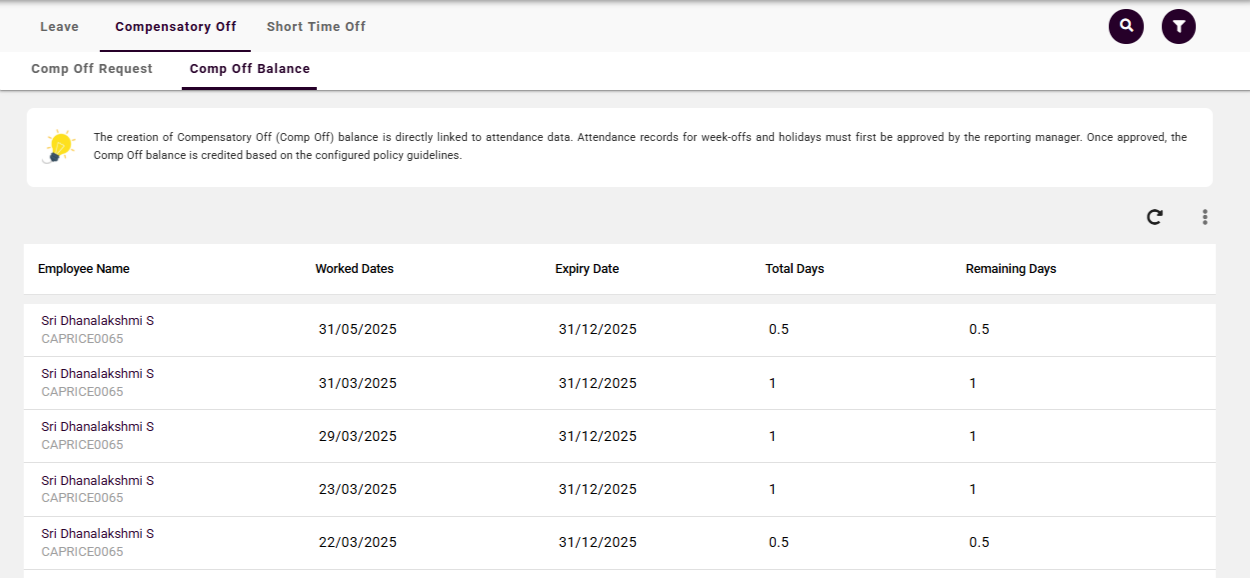
Fig: Comp off Balance
View Previous & Future Leave Data
By default, the grid displays leave data for the current month only.To view past or upcoming leave records, use the Leave Period dropdown. You can choose from the following options:
This feature helps you easily track leave history or plan future time off within your selected timeframe.
On this screen
The Period Filter narrows your comp-off balance view to a specific window — This Month, Last Quarter, Year to Date, or any custom range. Useful for reconciling against specific attendance periods.
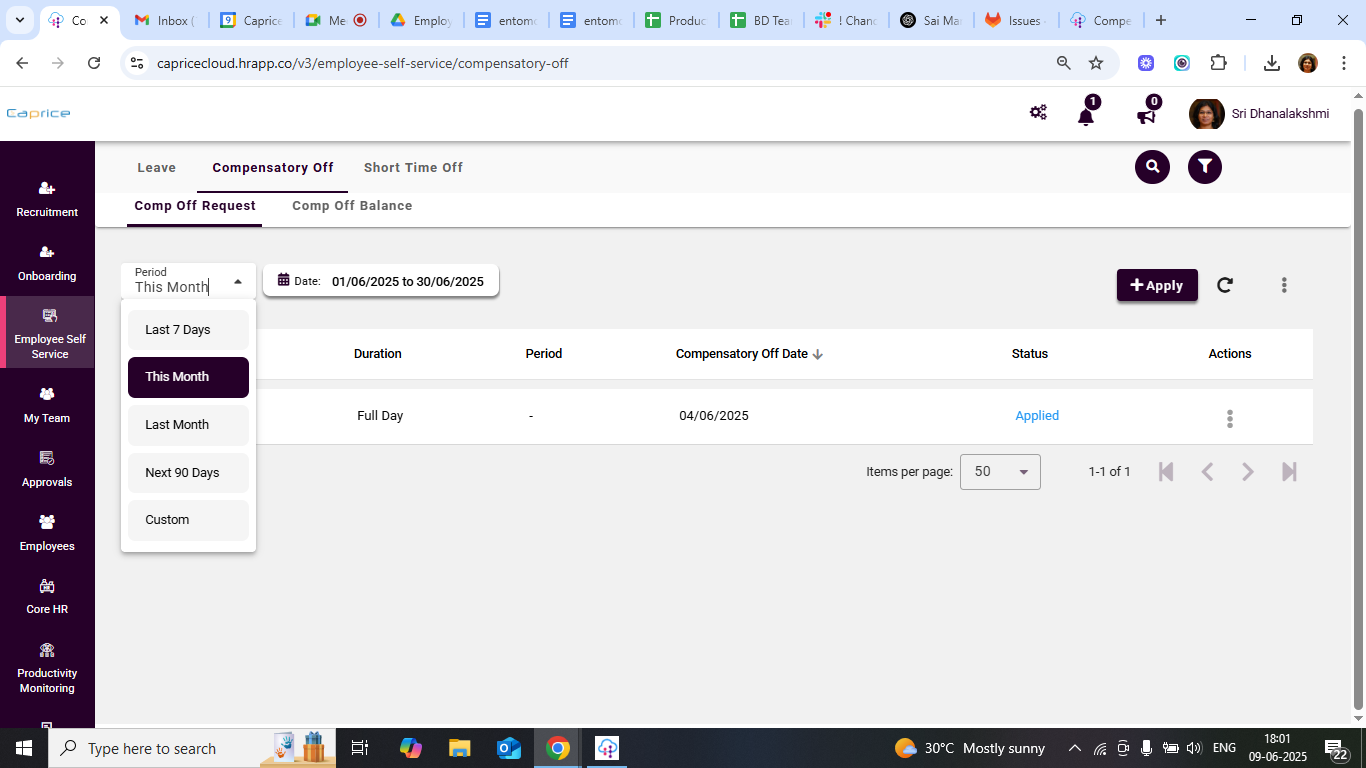
Fig: Comp off Period Filter
On this screen
The Expiring Soon section surfaces grants approaching their expiry date. Automated reminders go out at T-14, T-7, and T-1 days — this section is your in-app version of the same signal.
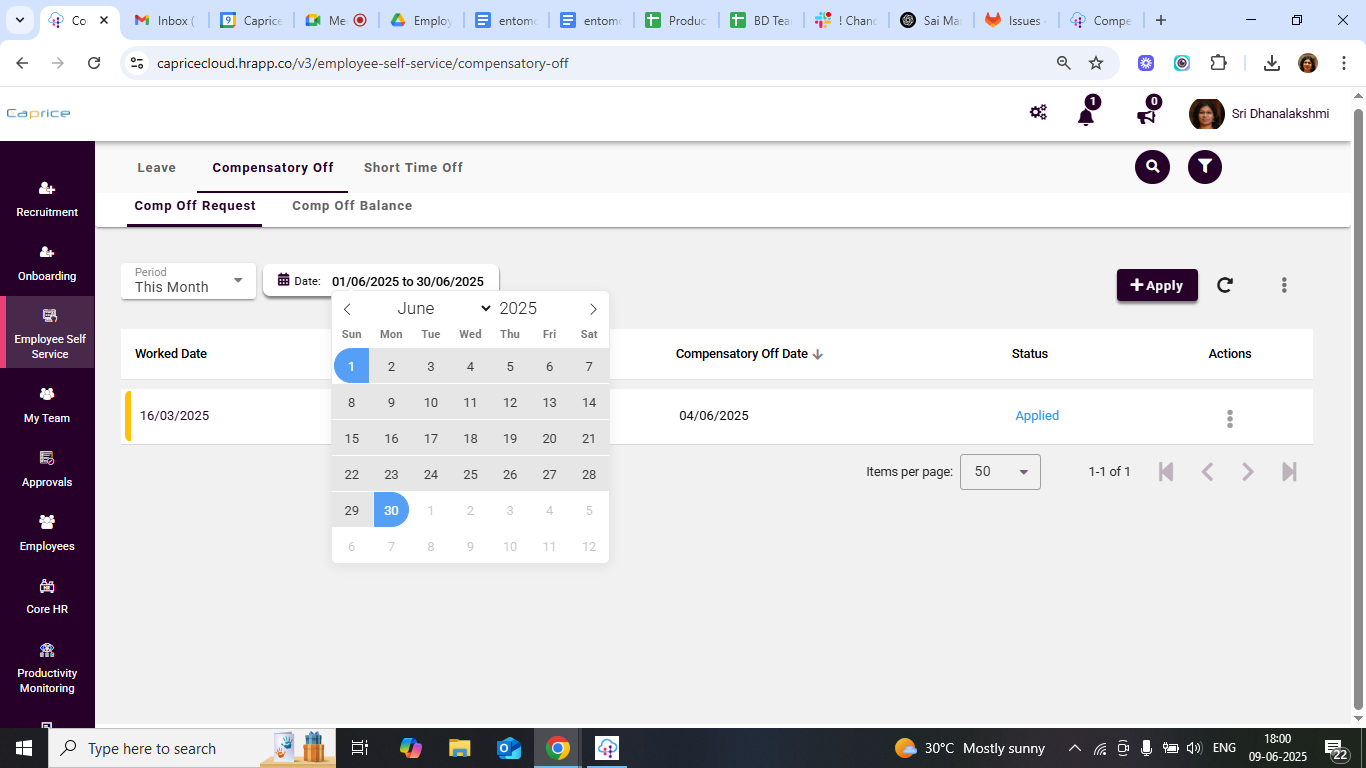
Fig: Comp off Period Custom Date Filter
Frequently Asked Questions — Comp Off Balance
Q. What does each field on the balance screen mean?
Granted = total comp-off approved from grant requests. Consumed = already used via comp-off requests. Pending = requests awaiting manager approval. Available = granted minus consumed minus pending. Expiring soon = comp-off within 14 days of its expiry date.
Q. Why doesn't my balance match what I expected?
Balance is based on approved grants only. Pending grant requests are not yet credited. The nightly reconciliation with attendance data can also adjust the balance if a grant was auto-created or corrected.
Q. How do I know which grant is expiring first?
The balance screen lists every grant individually with its approval date and expiry date. FIFO applies — the oldest unexpired grant is consumed first, so you never lose balance to expiry while having a newer grant available.
Q. What happens to the balance on my last working day?
Unused comp-off lapses on separation by default. If your organisation enables comp-off encashment on exit, the balance is paid out as a taxable one-time earning in your final payroll.
Q. Can I see historical balance changes?
Yes — the ledger below the balance summary shows every grant, consumption, override, and expiry event with a timestamp and reason code.
Related Articles