EMPLOYEE SELF SERVICE · TIME OFF
Pre Approval
Pre-plan attendance exceptions — work-from-home, on-duty, on-site visits — so they are approved before the day arrives.
Time-off type
👥 WHO USES THIS
▸Employees planning non-office work ahead of time.
▸Managers who want advance visibility of team availability.
▸HR reconciling attendance to policy.
✨ WHAT YOU'LL ACHIEVE
▸Submit a pre-approval for a future date / range.
▸Attach context — client visit, travel, work-from-home.
▸Track status and adjust the request if plans change.
Employee Self Service → Pre Approval
Pre-Approval for Work from Home, Week Off, Holiday or On Duty
Employees can request permission to work from home, work on their scheduled week off or holiday or on Duty(official work outside office) through the ESS portal by submitting a pre-approval request. This ensures that the request is reviewed and approved before the work from home day or week off or holiday or on duty.
To apply for a pre approval request, click the +Initiate Request button on the right-hand side. A pop-up window will open, where employees must fill in all the mandatory fields and submit the request.
On this screen
From the pre-approval list you can Edit (while still pending) or Cancel (any time before you raise the formal request). Cancelling a pre-approval does not require re-approval — it lapses immediately.
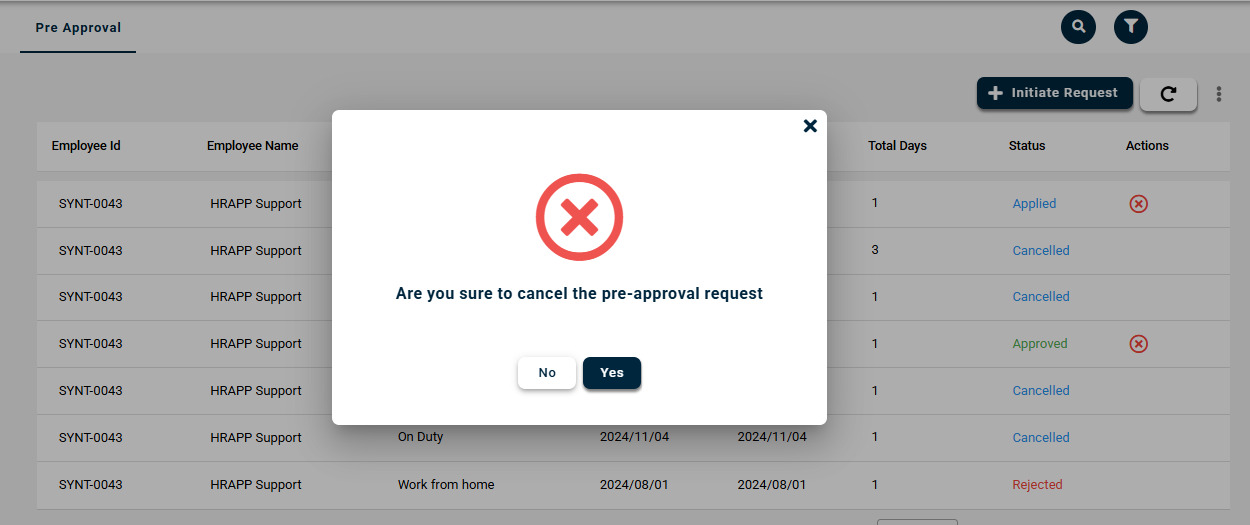
Fig: Cancel Pre-approval Request
On this screen
The Export Report option downloads the register to Excel. Choose your date range and any filters — the download carries every relevant field including status, approver, and balance impact.
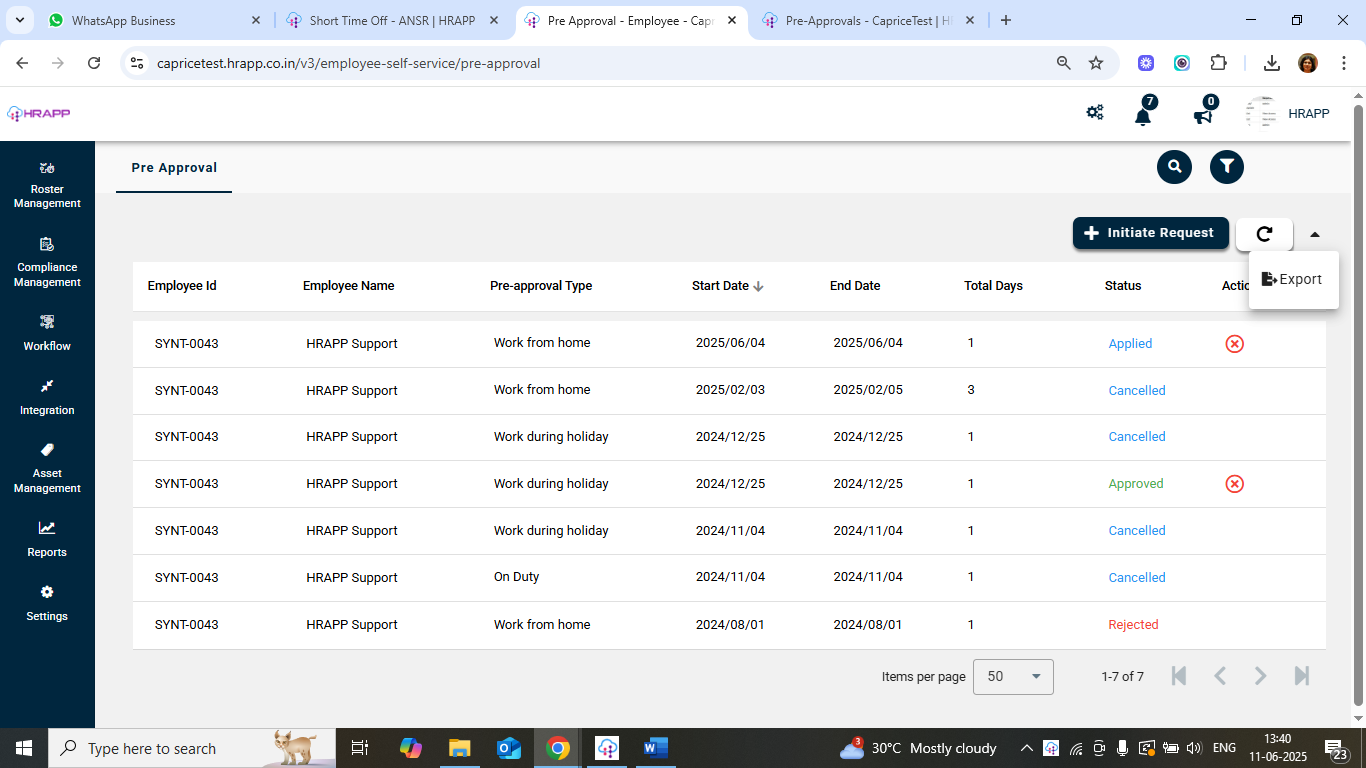
Fig: Export Report
Fields Description
Title | Description |
|---|
Pre Approval Type | Work during Holiday- Submit a pre-approval request if you are required to work on a declared holiday. On Duty - Use this option to request approval in advance for official work outside the office, such as client visits or field assignments. |
| Duration | The length of the pre approval (Full Day, Half Day) |
Period | If the pre approval request is for a half-day, the period must be specified as either the first half or the second half of the day |
Leave Start and End Date | The start and end dates of the pre approval period. |
Reason | The purpose for taking pre approval (e.g., Personal, Medical). |
Field Reference — Pre Approval Request Form
The fields for seeking advance sign-off before raising a formal leave / time-off request.
| Field | Description | Required | Validation |
|---|
| Intended Leave Type | Which leave category you're planning to use (Annual, Comp Off, etc.). | Yes | Dropdown filtered by eligibility; does not reserve balance. |
| Proposed Start Date | Planned first day of absence. | Yes | Can be up to 12 months in the future. |
| Proposed End Date | Planned last day of absence. | Yes | Must be ≥ Start Date. |
| Tentative Duration | Auto-calculated in working days. | Auto | Read-only; excludes weekends / holidays. |
| Purpose / Reason | Context for your manager (e.g. family wedding, long-planned trip, surgery window). | Yes | Minimum 20 characters. |
| Criticality Flag | Mark as High if the dates are non-negotiable (wedding, pre-booked travel). | No | Non-blocking; signals urgency to approver. |
| Supporting Info | Travel itinerary, medical schedule, or similar attachment. | No | Optional; increases approval confidence. |
| Coverage Plan | Who will cover your responsibilities during the planned absence. | Conditional | Required for absences ≥5 days. |
| Approver | Auto-populated from reporting manager; HR may reassign. | Auto | Pre-approvals can be sent to skip-level manager for dual sign-off (configurable). |
Frequently Asked Questions — Pre Approval
Q. What is Pre Approval used for?
Pre Approval is a separate sign-off you obtain before submitting a formal leave or time-off request — common for long absences, overlapping team leaves, or critical project windows where you need early confirmation that the time off will be supported.
Q. Is Pre Approval the same as the leave approval workflow?
No. Pre Approval is advisory — it signals that the time off is likely to be approved. You still need to raise the actual leave / comp-off request closer to the date, which goes through its own approval workflow.
Q. Does Pre Approval reserve my leave balance?
No, balance is only debited when the final request is approved. Pre Approval is purely a planning signal.
Q. Can a Pre Approval be revoked?
Yes, either party can rescind — your manager if business conditions change, or you if plans shift. Revocation is audit-logged.
Q. Do I need Pre Approval for every leave request?
No, it's optional. Most policies only recommend it for absences longer than a threshold (e.g. 5+ consecutive days) or during peak project windows.
Related Articles