Admin · Project & Timesheet
Project Management
Create projects, close or clone them, configure project locations, project managers, and custom employee groups — everything needed before employees can log time.
Admin Help Center›Project & Timesheet›Project Management
Before You Begin
- Admin access to CoreHR → Employee Data Management → Projects
- Cost centres and departments already defined
- Employees onboarded and assigned to a reporting manager
What You'll Achieve
- Create, edit, clone, close and delete projects
- Scope projects to a Location, Custom Group or whole Organization
- Assign Project Managers with independent approval rights
Navigation
CoreHR → Employee Data Management → Projects → Project
Create a Project
Click Add New Project from the Projects list. Fill in the project details and choose a scope — Employee, Custom Group or Organization.
On This Screen
Add Project form
Capture title, code, start/end dates, cost centre, and visibility scope. Dates and title are required; everything else is optional but recommended.
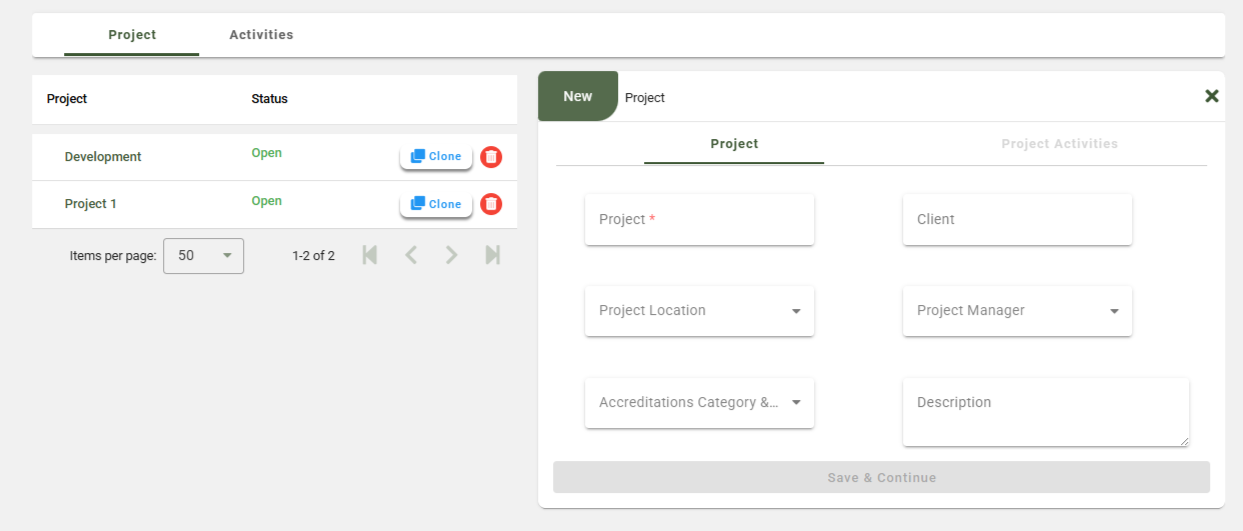
Fig 1 · Add Project
Add Project — Field Reference
| Field |
Description |
Required |
| Project Title |
Human-readable name shown to employees when they log time. |
Required |
| Project Code |
Short alphanumeric identifier (e.g. MOB-26). Used in reports and exports. |
Required |
| Start Date |
The date employees can start logging time against this project. |
Required |
| End Date |
After this date the project closes automatically and no new entries are accepted. |
Optional |
| Cost Centre |
Financial bucket for downstream reporting and billing. |
Required |
| Visibility Scope |
Employee, Custom Group, or Organization — controls who sees this project. |
Required |
| Description |
Optional note shown in project detail view. |
Optional |
Edit or Close a Project
Open the project detail view and click Edit to update any field. To stop new time entries, set an End Date in the past or use the Close action.
On This Screen
Edit & Close
Closing preserves historical timesheet data — entries remain visible in reports. Only future entries are blocked.
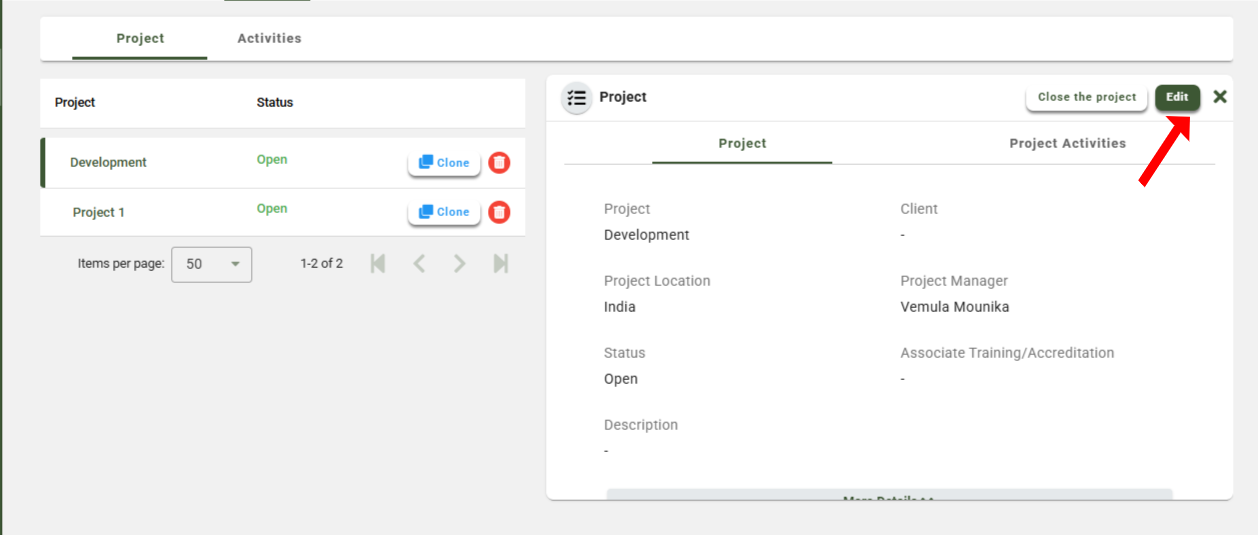
Fig 2 · Edit & Close the Project
Clone a Project
When you need a similar project (same activities, same employee set), clone the existing one instead of rebuilding it.
On This Screen
Clone Project & Activities
Cloning copies the project metadata, mapped activities, and assigned employees. Timesheet history does not carry over.
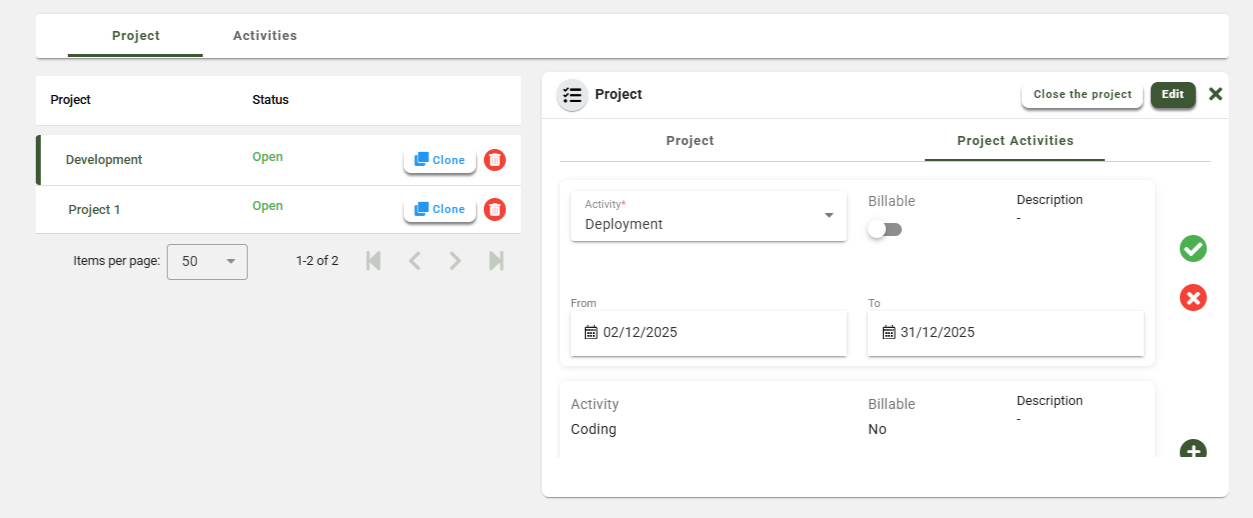
Fig 3 · Clone Project and Activities
Delete a Project
Deletion is permitted only when no timesheet entries exist against the project. If entries exist, close the project instead.
On This Screen
Delete Project
The Delete action is disabled when the project has any historical time entries. Close the project to remove it from active lists.
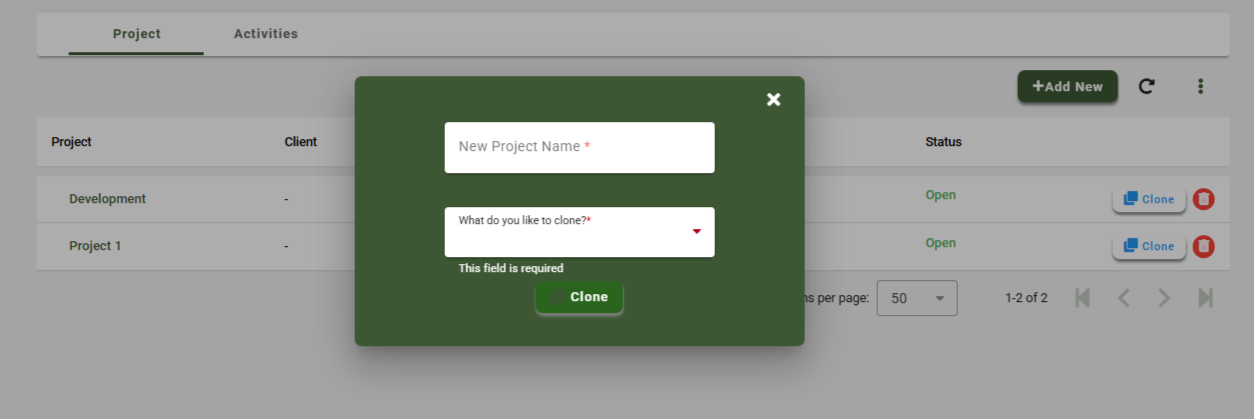
Fig 4 · Delete Project
Scope Configurations
A project's visibility is controlled by one of three scopes — Employee level, Custom Group level, or Organization level. Each has its own prerequisite.
Project Location
Location-scoped projects appear only to employees assigned to the matching location. Set locations up at CoreHR → Org Structure → Location → Add New before you reference them in the project form.
On This Screen
Add Location
Location code, name, country and time zone. Linked to the Project Location dropdown in the project create form.
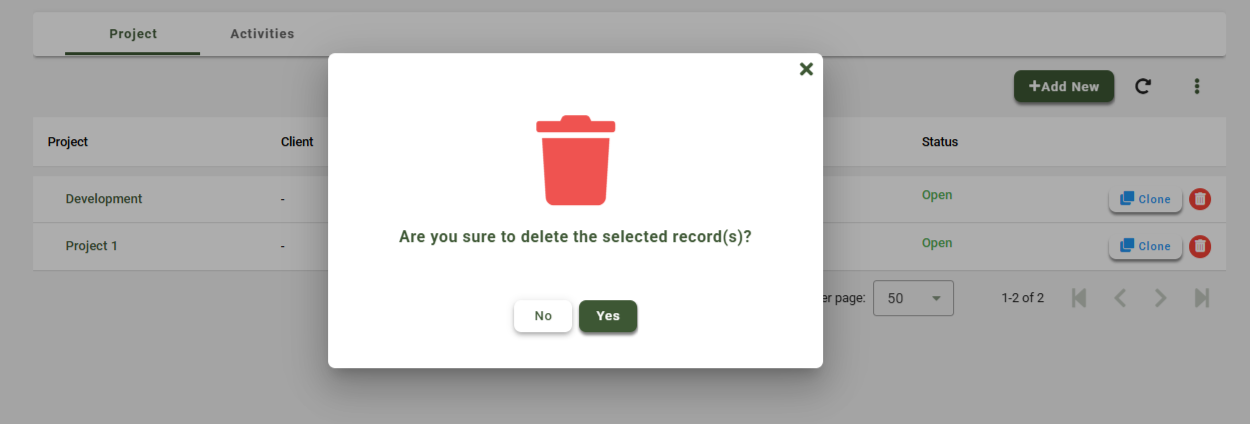
Fig 5 · Add Location
Project Manager
Project Managers can approve timesheets for their project regardless of the employee's reporting line. Enable the Manager flag at My Team → Team Summary → select the employee → enable Manager.
On This Screen
Set Manager Flag
Only enable this for employees who should approve time entries for one or more projects they own.
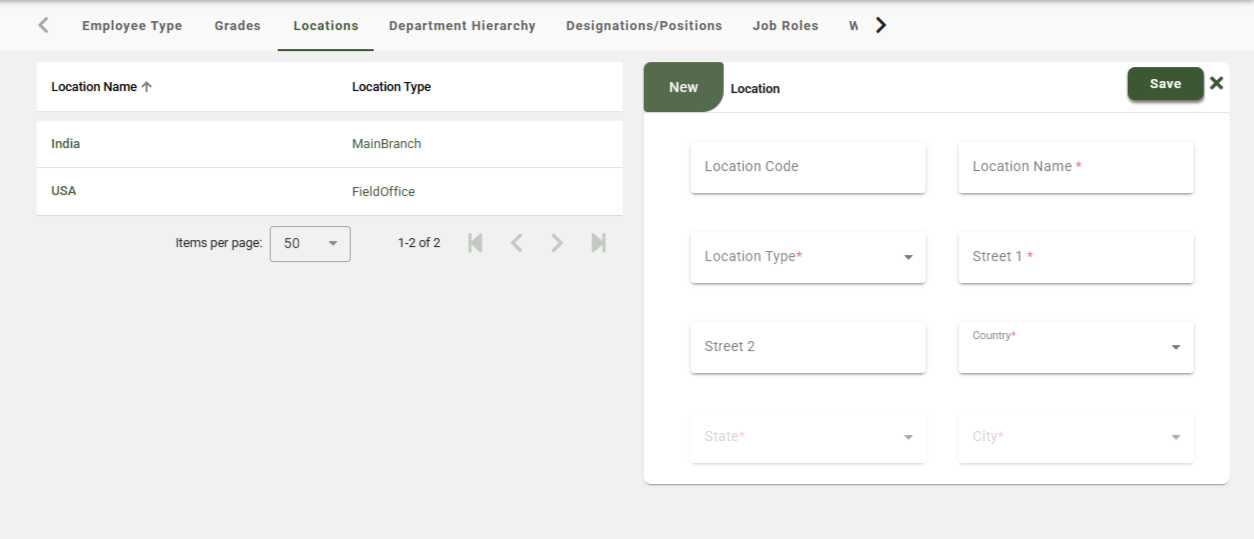
Fig 6 · Project Manager
Custom Group
Use Custom Groups when a project is owned by a cross-functional team that doesn't map cleanly to a location or department. Groups are defined at CoreHR → Employee Data Management → Custom Employee Groups.
On This Screen
Custom Employee Groups
Add members individually or bulk-import via CSV. Group appears in the Custom Group dropdown on the project create form.
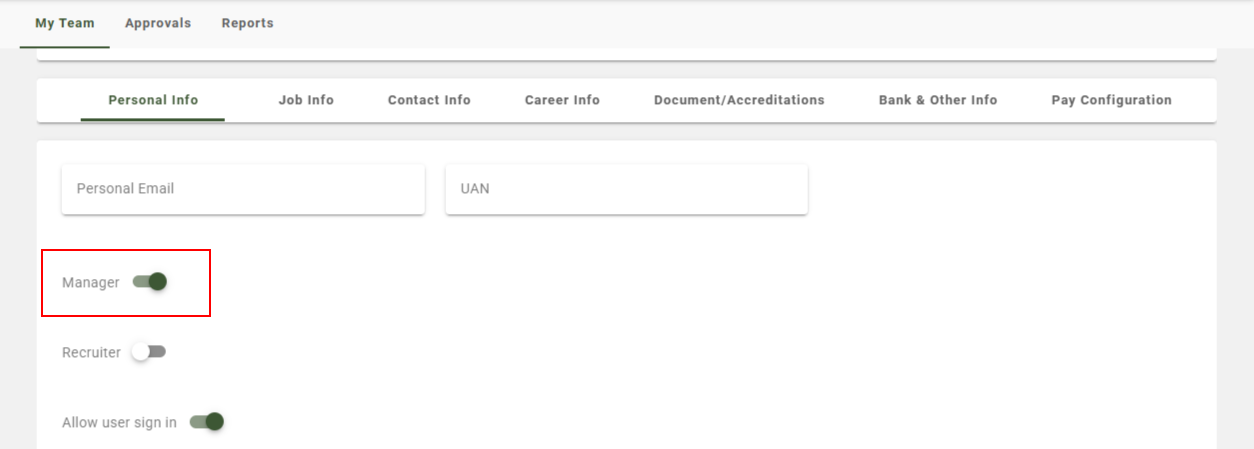
Fig 7 · Custom Employee Groups
Full Field Reference
A consolidated view of every field on the Project create/edit form, including scope-specific controls.
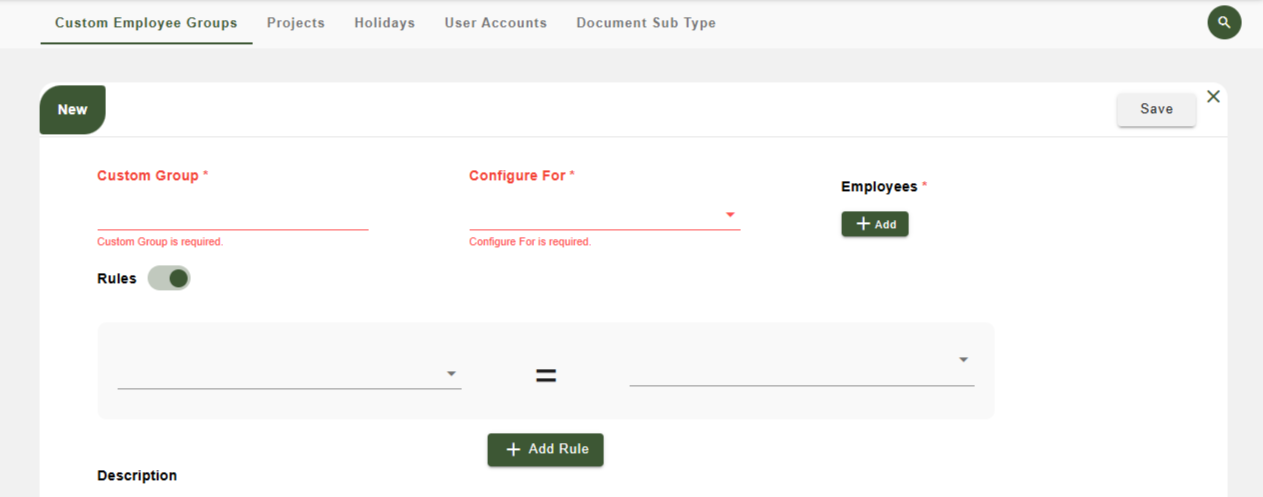
Fig 8 · Fields Description
Frequently Asked
Common questions
Can one project have multiple Project Managers?+
Yes. Every employee with the Manager flag who is also mapped to the project can approve time for it.
What happens to timesheets when a project is closed mid-week?+
Existing draft entries remain editable until submitted. New entries are blocked from the End Date forward.
Can I change a project's scope after creation?+
Yes — edit the project and pick a different scope. Employees who lose access keep their historical entries but can no longer add new ones.
How do I restore a deleted project?+
Projects with no time entries can be deleted permanently. If you need the structure back, clone a similar project instead.
Related Articles & Next Steps