Employee & Manager · Project & Timesheet
Timesheet
The daily workspace for logging project time. Employees enter hours by project & activity; managers see weekly summaries and project-level decompositions.
Admin Help Center›Project & Timesheet›Timesheet
Before You Begin
- Employee is mapped to at least one project
- Activities are mapped to the projects
- Workweek and daily hour caps configured
What You'll Achieve
- Log daily hours per project & activity
- Edit or delete draft entries before submitting
- See weekly totals and per-project decompositions
Navigation
My Self → Timesheets (employee view)
My Team → Timesheets (manager view)
Log a Timesheet Entry
From the Timesheet page, click Add New. Choose the project, then the activity (dropdown is filtered to activities mapped to that project), enter the hours and an optional note, and save.
On This Screen
Add Timesheet entry
Four required fields: Date, Project, Activity, and Hours. The Activity dropdown will be empty if no activities are mapped to the selected project — fix that in Activity Management first.
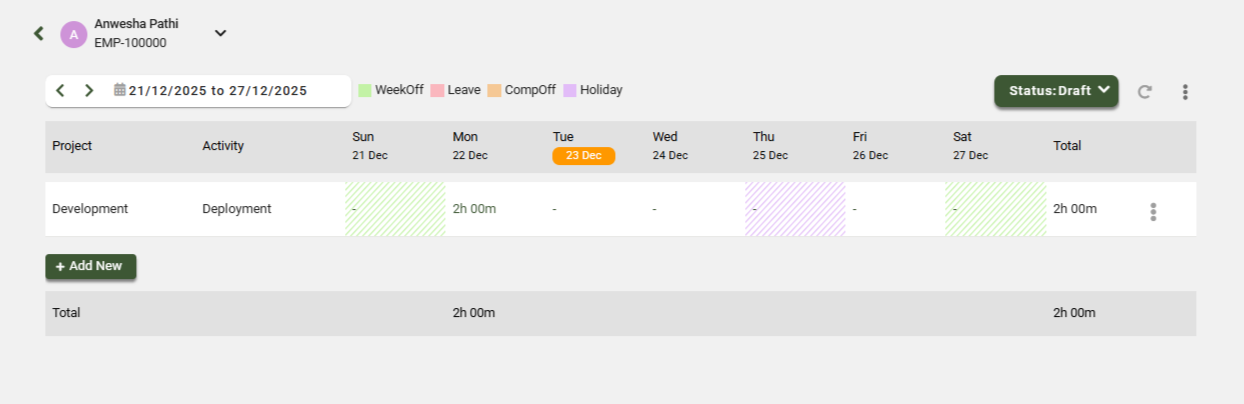
Fig 1 · Employee Timesheet — add / view entries
Timesheet Entry — Field Reference
| Field |
Description |
Required |
| Date |
The day the work was performed. Defaults to today. Must be within the current open week. |
Required |
| Project |
Project you're logging time against. Only shows projects you're mapped to. |
Required |
| Activity |
Type of work performed. Dropdown is filtered by the activities mapped to the selected project. |
Required |
| Hours |
Hours and minutes worked on this task. Totals are capped by the daily limit set in Admin. |
Required |
| Notes |
Free-text description of the work. Shown to your manager during approval. |
Optional |
Edit or Delete a Draft
Drafts are editable until you submit them. Hover an entry to reveal Edit and Delete actions. After submission, only your manager can reopen an entry via rejection.
On This Screen
Draft controls
Edit updates hours/notes without resetting the date. Delete removes the entry entirely — use it for duplicate or mis-dated entries.
Submit for Approval
At the end of the week, click Submit Week. Every draft entry in the open week moves to Pending Approval; you can no longer edit them unless your manager sends them back.
Manager Views
Managers see two aggregate views at My Team → Timesheets.
Weekly Summary
A calendar-style view of every direct report's submitted hours, day by day. Use this to spot missing days or unexpectedly high totals before approving.
On This Screen
Weekly Summary
Columns are weekdays; rows are employees. Cell values show total hours per day. Click any cell to drill into the daily entries.
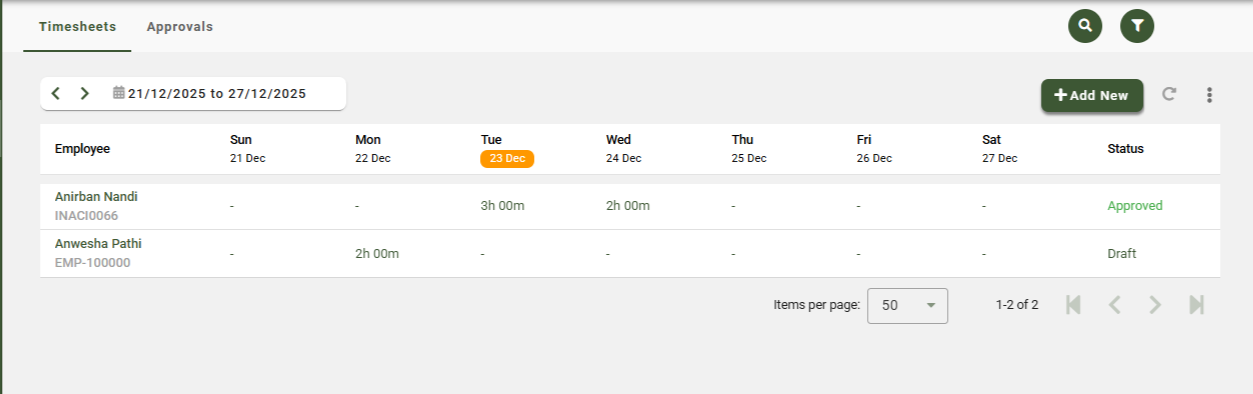
Fig 2 · Manager — Weekly Summary
Project & Activity Summary
A decomposed view of every entry by project and activity. Shows how an employee's week was actually distributed across billable projects and activity types.
On This Screen
Project & Activity Summary
One row per project-activity combination with total hours for the selected week. Use this to verify billing allocations and catch miscategorized time.
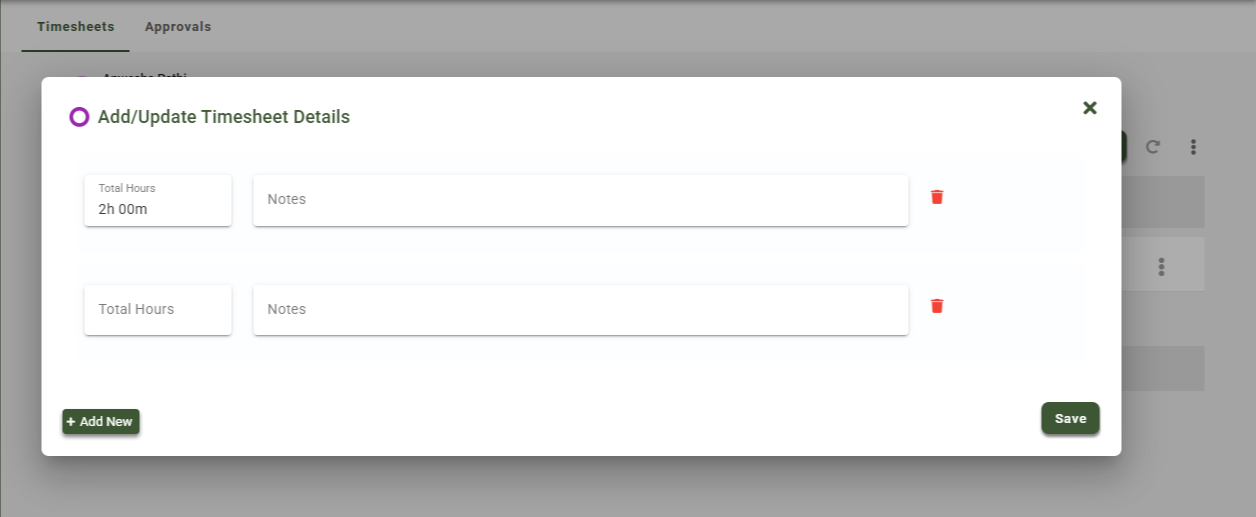
Fig 3 · Manager — Project & Activity Summary
Frequently Asked
Common questions
Why does the Activity dropdown show no options?+
No activities are mapped to the project you picked. Ask your Admin to map at least one activity to that project.
Can I backdate a timesheet entry?+
Only within the current open week. Entries for past, locked weeks require your manager to reopen the week.
What if I forgot to submit last week?+
The system auto-submits entries at the week close. If your org allows late submission, Drafts older than the current week will be flagged red — submit them and notify your manager.
Can I log more than 24 hours in a day?+
No. Daily caps are set by Admin (typically 8 or 10 hours). Split longer days across multiple projects/activities.
Related Articles & Next Steps